Showing posts with label Informatica Interview Question. Show all posts

Sunday, February 21, 2016

filter out rows with null values in informatica

Various time ,we need to filter null values in informatica. We can remove them for further processing or other scenarios also . Check Informatica scenarios of filtering out rows with null values .
To filter our rows with null values , we can use it in Source qualifier's over ride SQL or you can use  filter transformation in informatica.
Must check : Normalizer Transformation in informatica
To filter out rows containing null values or spaces, use the ISNULL and IS_SPACES functions to test the value of the port. For example, if we want to filter out rows that contain NULLs in the FIRST_NAME port, use the following condition:
IIF(ISNULL(FIRST_NAME),FALSE,TRUE)
This condition states that if the FIRST_NAME port is NULL, the return value is FALSE and the row should be discarded. Otherwise, the row passes through to the next transformation.
Must check : Lookup Transformation in informatica

informatica isnull filter condition
how to handle null values in informatica
informatica filter is not null
filter null values in sql
filter null values in sql server
powershell filter null values
qlikview filter null values
isnull in informatica syntax

Monday, January 4, 2016

Aggregator Transformation in Informatica with example

Aggregator Transformation in Informatica , is a connected Active transformation which let you performs aggregate calculations, such as averages and sums on the group of data. Aggregator transformation is differ from Expression transformation , as  you use Aggregator  transformation to perform calculations on groups .  The Expression transformation permits you to perform calculations on a row-by-row basis only.
Aggregator Transformation image Aggregator Transformation in informatica
Aggregator transformation in informatica scenarios
The Aggregator transformation is use to perform aggregate calculations for each data. Data can be modified using built-in functions . Sample calculation peformed by the Aggregate transformer are :
  • AVG, COUNT, MAX, MIN, SUM
  • FIRST, LAST
  • MEDIAN, PERCENTILE, STDDEV, VARIANCE

Is Aggregator Transformation Active or Passive ?

Aggregator Transformation is a Active  transformation as  it also enable you to use conditional clauses to filter rows.

Is Aggregator Transformation Connected or Unconnected ?

Aggregator Transformation is a connected Transformation.

Components of Aggregator Transformation:

  • Aggregate cache:  The Integration Service stores data in the aggregate cache until it completes aggregate calculations. It stores group values in an index cache and row data in the data cache.
  • Aggregate expression:  Enter an expression in an output port. The expression can include non-aggregate expressions and conditional clauses.
  • Group by port:  Indicate how to create groups. The port can be any input, input/output, output, or variable port. When grouping data, the Aggregator transformation outputs the last row of each group unless otherwise specified.
  • Sorted input:  Select this option to improve session performance. To use sorted input, you must pass data to the Aggregator transformation sorted by group by port, in ascending or descending order.
You can configure the Aggregator transformation components and options on the Properties and Ports tab.

Configuring Aggregator Transformation Ports:

You can configure the following components on the ports tab
  • Port name:  Add the name of the port.
  • Datatype, precision, and scale:  Configure the datatype and set the precision and scale for each port.
  • Port type : A port can be input, output, input/output, or variable. The input ports receive data and output ports pass data. The output ports can pass aggregated data (use Aggregate function in Expression ). Variable ports store data temporarily and can store values across the rows.
  • Expression:  Use the Expression Editor to enter expressions. Expressions use the transformation language, which includes SQL-like functions, to perform calculations. Example ( sum , Max,average)
  • GroupBy:  Indicate how to create groups. The port can be any input, input/output, output, or variable port. When grouping data, the Aggregator transformation outputs the last row of each group unless otherwise specified

Steps to create an Aggregator transformation

  • In the Mapping Designer, open a Mapping.
  • Click Transformation > Create. Select Aggregator transformation.
  • You can also select Transformation by clicking  function  button on Informatica Designer
  • Enter a name and click Done.
  • Select and drag the ports from the source qualifier or other transformations to add to the Aggregate  transformation. You can also open the transformation and create ports manually.
  • Double-click on the title bar and click on Ports tab. You can create output and variable ports within the transformation.
  • Select the Ports tab.
  • Aggregator Transformation Step 6 Aggregator Transformation Step 4[/caption] Click the group by option for each column you want the Aggregator to use in creating groups. Optionally, enter a default value to replace null groups.
  • Click Add to add an expression port. The expression port must be an output port. Make the port an output port by clearing Input (I).
  • Optionally, add default values for specific ports.If the target database does not handle null values and certain ports are likely to contain null values, specify a default value. [caption id="attachment_158" align="alignnone" width="300"]Aggregator Transformation Step 5
  • Aggregator Transformation Step 5
    Aggregator Transformation Step 6
  • Configure properties on the Properties tab. Aggregator Transformation Step 6
  • To enhance the performance of Aggregator , it is recommended to provide Sorted Data to it (Via SQ query or  by adding Sorter Transformation before it)
  • In case Sorted Input data is coming to Aggregator, check the "Sorted Input" option under the properties Tab.
  • Click OK.
  • Connect the output ports to a downstream transformation or target.

Example of Aggregator Transformation:

Incoming Search terms :

Sunday, January 3, 2016

Expression Transformation in informatica

Expression Transformation , is a connected  and passive transformation (number of input and output rows is the same), which let you modify individual ports of a single row , or add or suppress them. For example: calculating annual Salary, concatenation. In below article we will go through the properties of Expression Transformation.


The Expression transformation in informatica is use to perform non-aggregate calculations for each data. Data can be modified using logical and numeric operators or built-in functions . Sample transformations handled by the expression transformer are :
  • Data Manipulation : concatenation( CONCAT or || ) , Case change (UPPER,LOWER) truncation, InitCap (INITCAP)
  • Datatype conversion :  (TO_DECIMAL, TO_CHAR, TO_DATE)
  • Data cleansing - check nulls (ISNULL) , replace chars, test for spaces (REPLACESTR) , test for number

Why expression transformation is passive transformation ?

Expression Transformation is a Passive transformation as it only modifies the incoming port data , but it does'n effect the number of rows processed.

Expression Transformation  is Connected or Unconnected ?

Expression Transformation is a Connected Transformation.

steps to add Expression transformation in Informatica

Use the following procedure to create an Expression transformation.

Steps to create an Expression transformation:

  1. In the Mapping Designer, open a Mapping.
  2. Click Transformation > Create. Select Expression transformation.
  3. You can also select Transformation by clicking  function  button on Informatica Designer
  4. Enter a name and click Done.
  5. Select and drag the ports from the source qualifier or other transformations to add to the Expression transformation. You can also open the transformation and create ports manually.
  6. Double-click on the title bar and click on Ports tab. You can create output and variable ports within the transformation.
  7. In the Expression section of an output or variable port, open the Expression Editor.
  8. Enter an expression. Click Validate to verify the expression syntax.
  9. Click OK.
  10. Assign the port datatype, precision, and scale to match the expression return value.
  11. To make it reusable ,check the reusable  option in the edit properties.
  12. Configure the tracing level on the Properties tab.
  13. Click OK.
  14. Connect the output ports to a downstream transformation or target.
After you make the transformation reusable, you cannot copy ports from the source qualifier or other transformations. You can create ports manually within the transformation

Expression Transformation Components or Tabs

An Expression transformation contains the following tabs:
  • Transformation:  Enter the name and description of the transformation. The naming convention for an Expression transformation is EXP_TransformationName. You can also make the transformation reusable.
  • Ports: Create  port and  configure them.
  • Properties: Configure the tracing level to determine the amount of transaction detail reported in the session log file.
  • Metadata Extensions:  Specify the extension name, datatype, precision, and value. You can also create  reusable metadata extensions.

Configuring Ports: You can configure the following components on the ports tab

  • Port name:  Add the name of the port.
  • Datatype, precision, and scale:  Configure the datatype and set the precision and scale for each port.
  • Port type : A port can be input, output, input/output, or variable. The input ports receive data and output ports pass data. The input/output ports pass data unchanged. Variable ports store data temporarily and can store values across the rows.
  • Expression:  Use the Expression Editor to enter expressions. Expressions use the transformation language, which includes SQL-like functions, to perform calculations.
  • Default values and description:  Set default value for ports and add description
For more details check below
  Informatica expression transformation
  Example of expression transformation in informatica
  Informatica performance tuning for expression transformation

Incoming search terms :

expression transformation
Informatica expression transformation
Expression transformation in informatica
Expression transformation in informatica with example
example of expression transformation
How to add expression transformation in informatica mapping
How to use expression transformation in informatica mapping


Tuesday, December 1, 2015

FILTER TRANSFORMATION IN INFORMATICA

Informatica Filter Transformation:

Filter Transformation is one of the most used transformation in Informatica which basically filter out the unwanted records from input data stream. Properties of  Filter Transformation:
  • It is an active transformation as it changes the no of rows passing through it
  • It is a connected Transformation
  • It is filter out those records which does’n satisfy its condition.
Must Read : You can check one good example of filter transformation in informatica

How to use Filter Informatica Transformation :
  • Filter Transformation can be added to the current by clicking on Transformation – > Create
  • Selecting the Filter Transformation and the create
  • Then we need to give some name , add the required input/output ports.
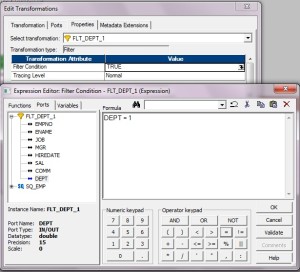
  • In the property  tab , we need to add the filter condition
filter-transformation-part4-300x272Filter Transformation
Note : Please note that  for one filter  we can generate only one type of target . To connect to multiple target with multiple condition we need to use Router Transformation

Must Read : You can check one good  article on Informatica Architecture

Performance Tuning Guidelines filter transformation :

  • Use filter closer to source to prevent the processing of unwanted records downstream .
  • If possible include these filter condition at source qualifier itself  ( in relation DB)
Creating Informatica Mapping:
  1. Open folder where we want to create the mapping.
  2. Click Tools -> Mapping Designer.
  3. Click Mapping -> Create -> Give mapping name. Ex: m_filter_example
  4. Drag EMP from source in mapping.
  5. Click Transformation -> Create -> Select Filter from list. Give name and click  Create. Now click done.
  6. Pass ports from SQ_EMP to Filter Transformation.
  7. Edit Filter Transformation. Go to Properties Tab
  8. Click the Value section of the Filter condition, and then click the Open button.
  9. The Expression Editor appears.
  10. Enter the filter condition you want to apply.
  11. Click Validate to check the syntax of the conditions you entered.
  12. Click OK -> Click Apply -> Click Ok.
  13. Now connect the ports from Filter to target table.
  14. Click Mapping -> Validate
  15. Repository -> Save
Incoming searching terms :- Informatica filter transformation, filter transformation scenarios in informatica filter transformation example in informatica filter transformation scenarios filter transformation informatica filter transformation in ssis filter transformation in informatica youtube filter transformation interview questions answers You can contact us by putting below contact form